Edit video with AI: type the change, keep the shot

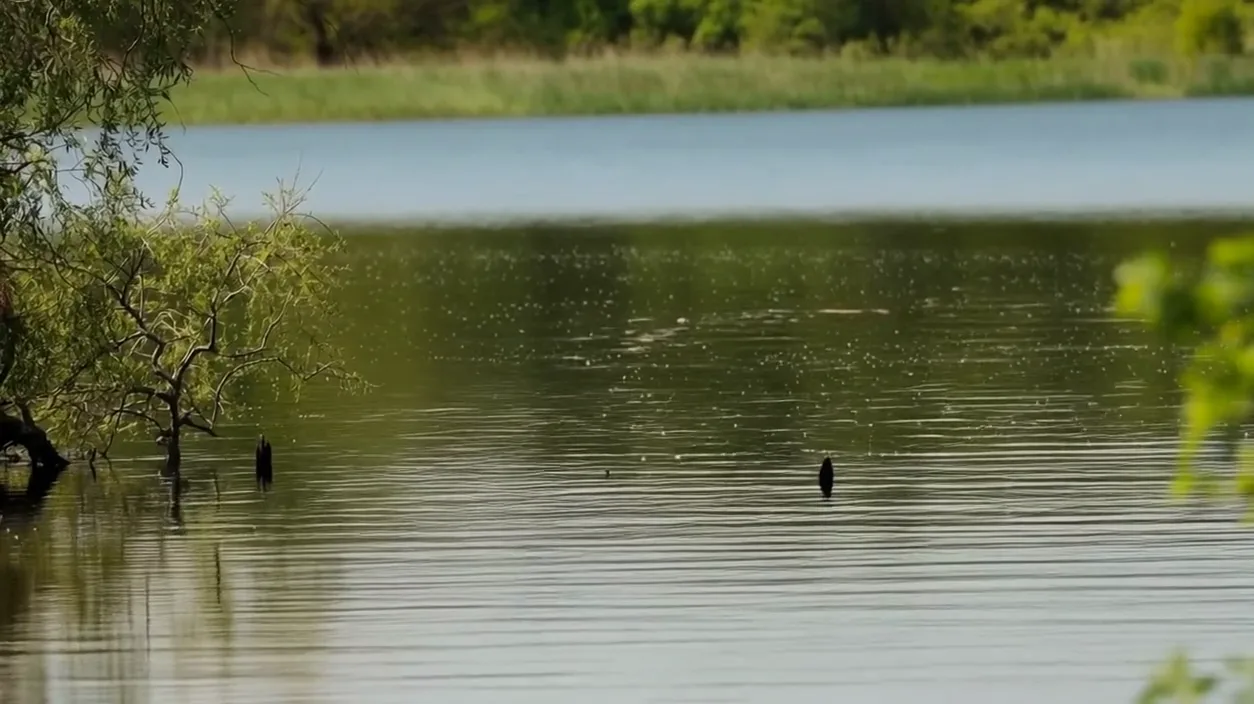
A small rowboat on a calm green lake, with reeds and willow branches, after the Remove edit
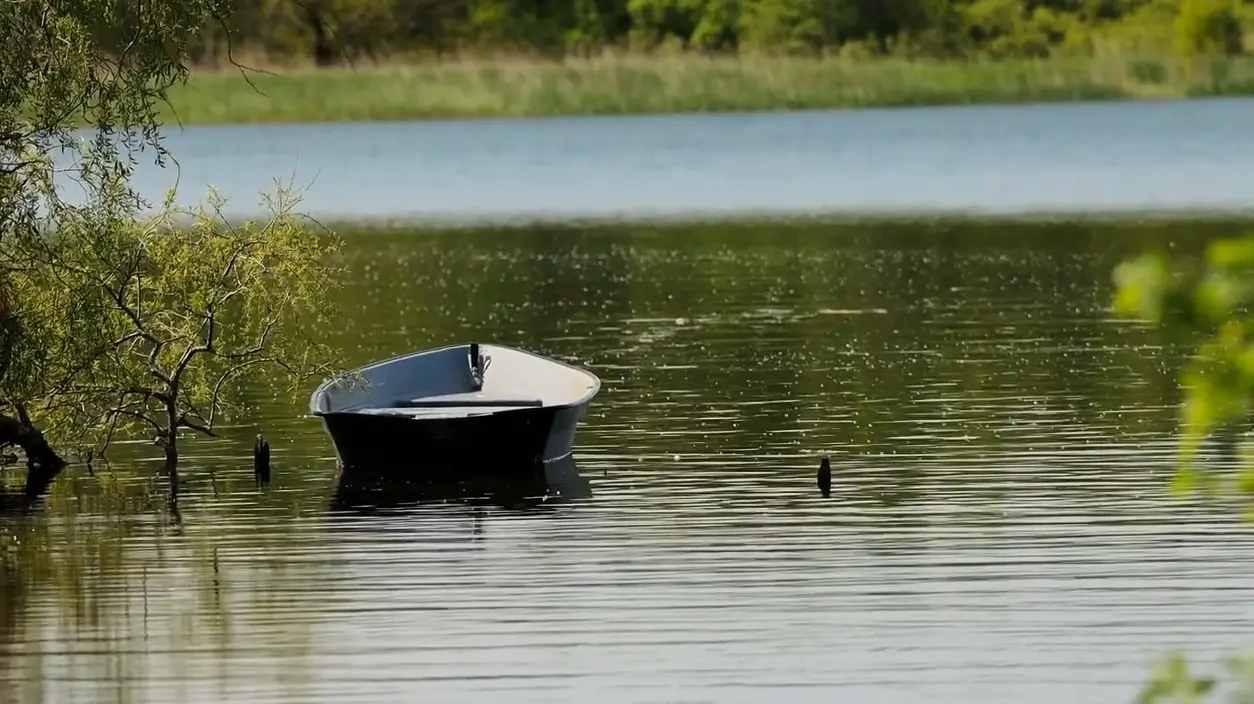
A small rowboat on a calm green lake, with reeds and willow branches, original shot
OriginalEdited
Remove · “the small rowboat on the water”

Drop a clip to edit

MP4 or MOV, up to 95 MB and 10 minutes. You trim the part to change next.

Task

Name the thing and where it is. Faces, identities and what people say are never changed.

Output

Sign up for 25 free credits

25 credits once after you confirm your email: one preview frame of your clip.

To edit video with AI on univid.app, you upload a clip, trim the 3 to 15 seconds you want to change, pick one of five tasks and write a single line such as "the red bin on the left". The edit is applied to those seconds and everything else in the frame stays as you shot it: the camera move, the timing, the people and the light. Before you pay for the video render you can see the edit on one still frame, so you know what you are buying.

Updated

How it works

  1. 1

    Upload and trim

    Drop an MP4 or MOV up to 95 MB and 10 minutes long. Scrub to the part you want to change and trim it to 3 to 15 seconds; crop to 16:9, 9:16 or 1:1 and mute it if you like. Trimming, cropping and muting are free.

  2. 2

    Pick a task and write one line

    Choose Remove, Replace, Relight, Weather or Extend, then describe the change in plain words. Check the preview frame: one still from your trim with the edit applied, so you can rewrite the line before you render.

  3. 3

    Render, compare, download

    The credit price is shown before you start. When the render is done you see the original and the edit side by side and download the MP4. If a render fails, its credits go back to your balance on their own.

Good for

  • Fixing one distracting detail in footage you cannot reshoot
  • Making a second version of a promo with a different item
  • Changing the light or weather of an establishing shot
  • Adding a few seconds to a shot that ends too early
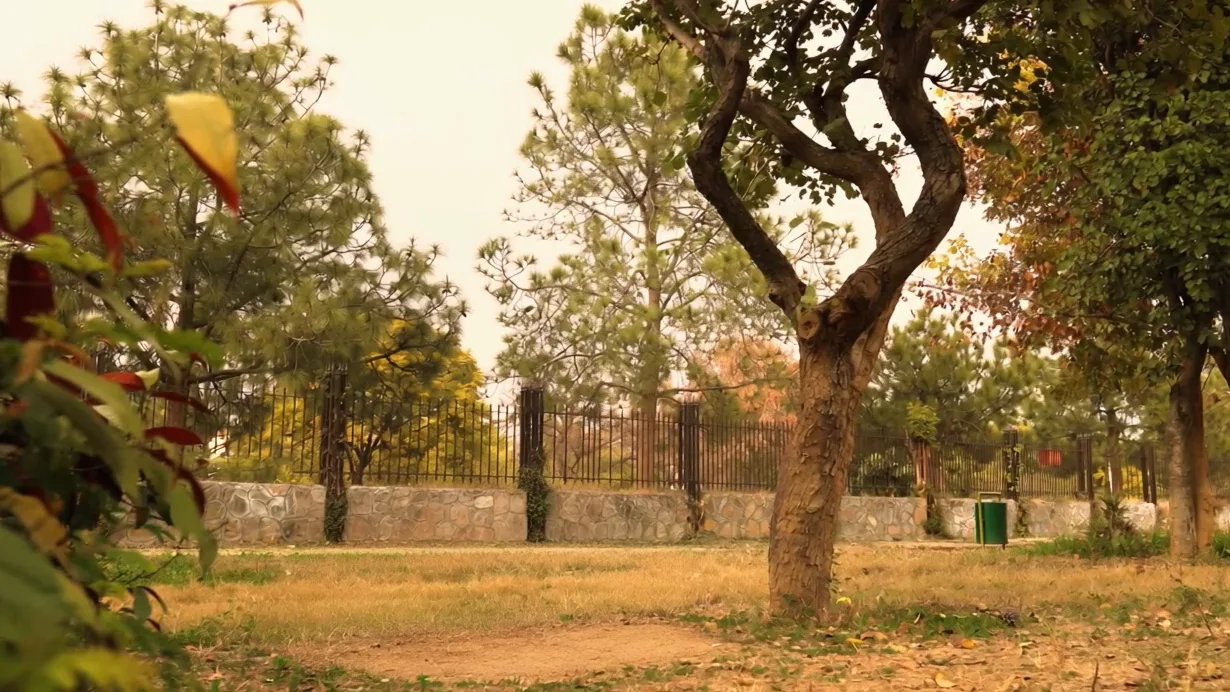
A wooden bench under an autumn tree in a quiet park, after the Remove edit
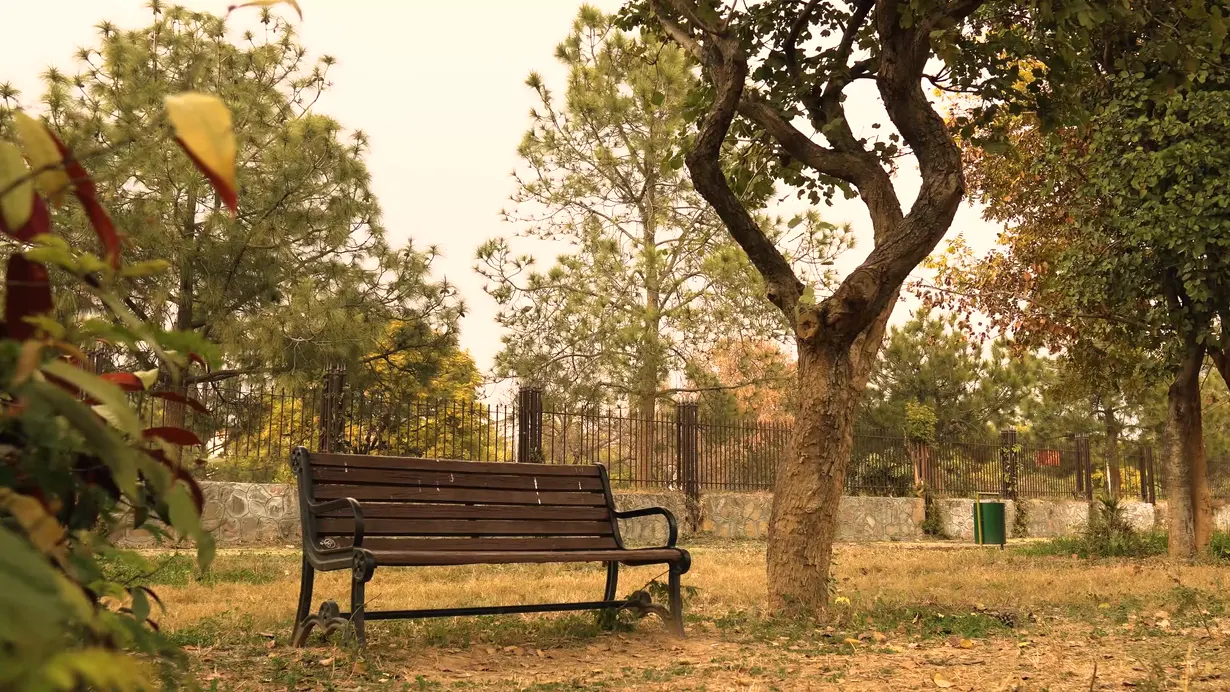
A wooden bench under an autumn tree in a quiet park, original shot
OriginalEdited
Remove · “the wooden park bench on the left”
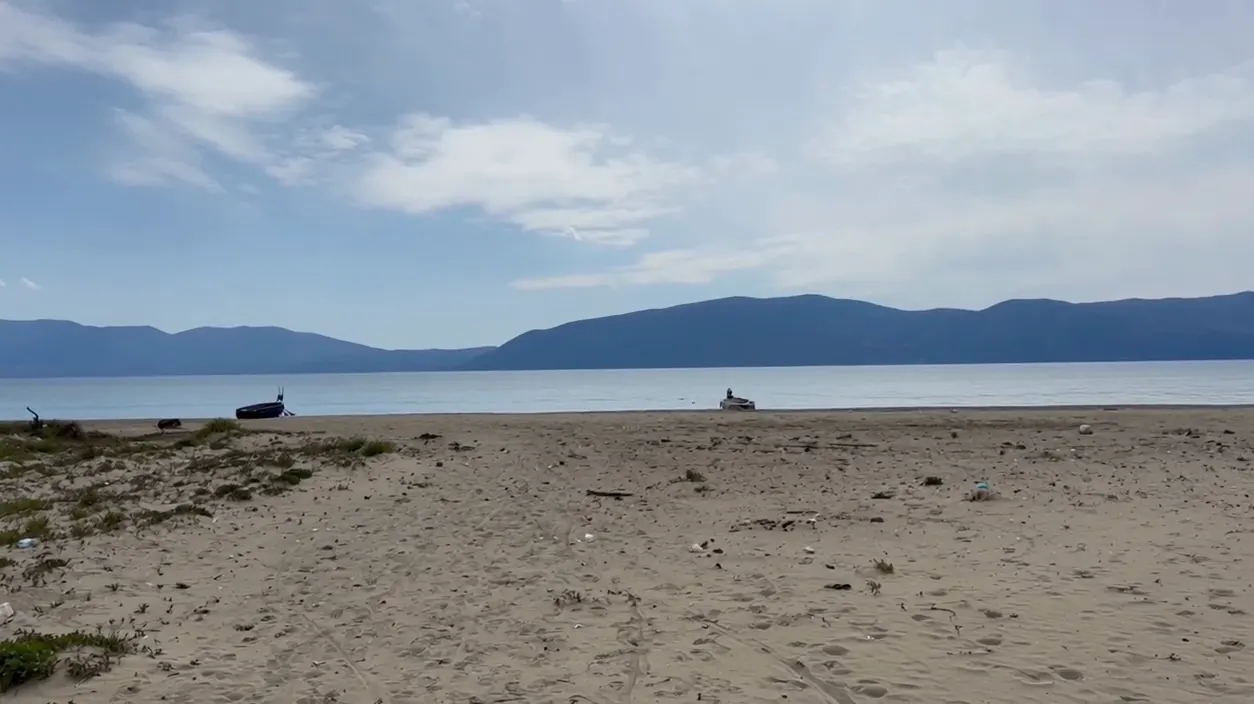
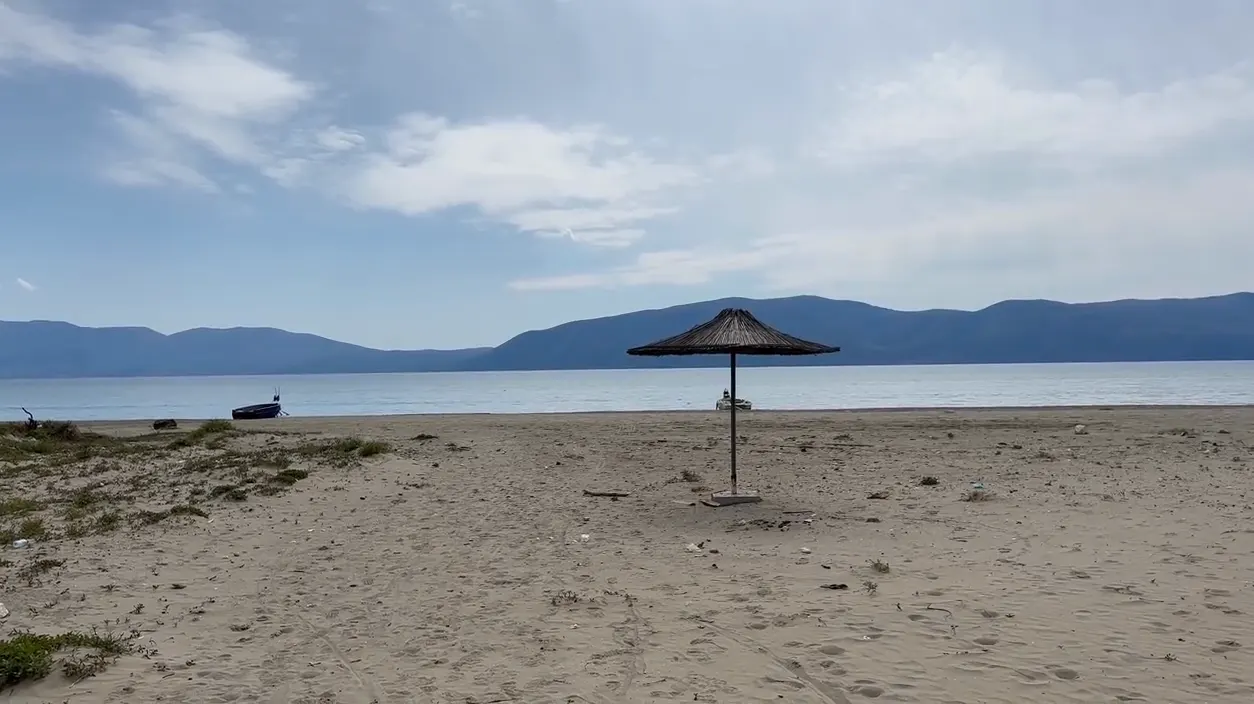
An empty beach on a lake with mountains and a straw umbrella, after the Remove edit
An empty beach on a lake with mountains and a straw umbrella, original shot
OriginalEdited
Remove · “the straw beach umbrella in the middle of the sand”
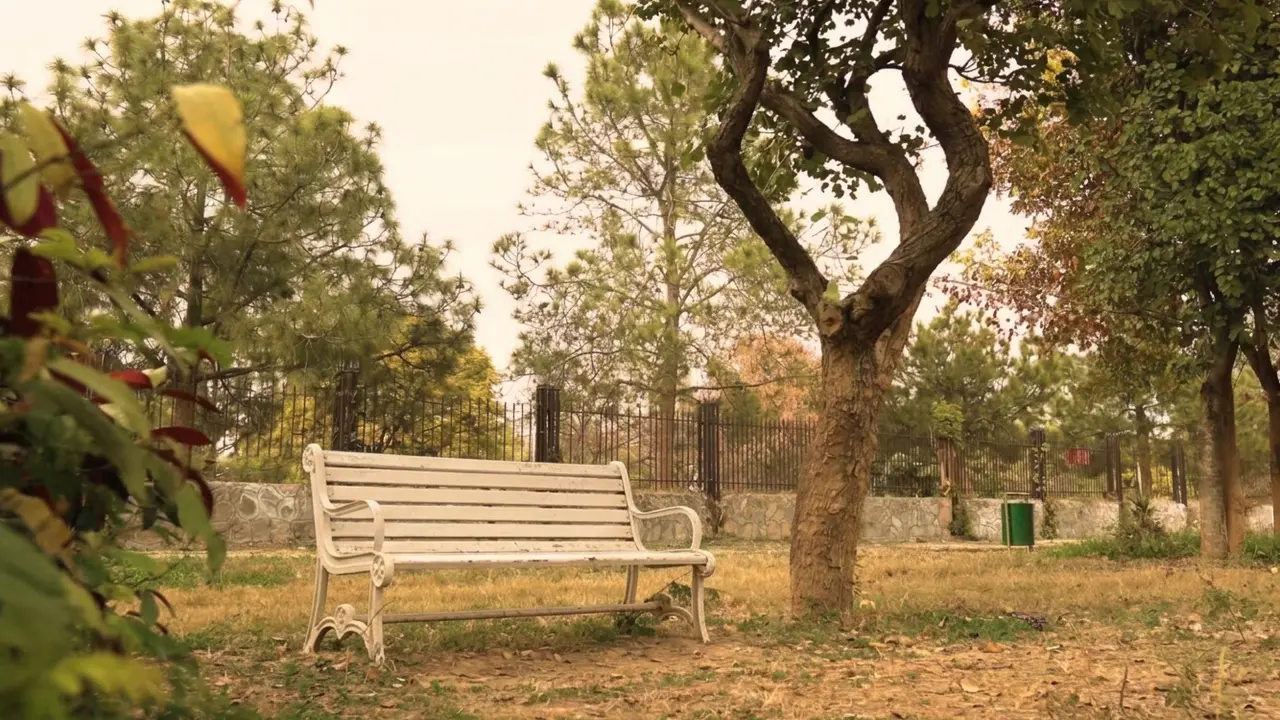
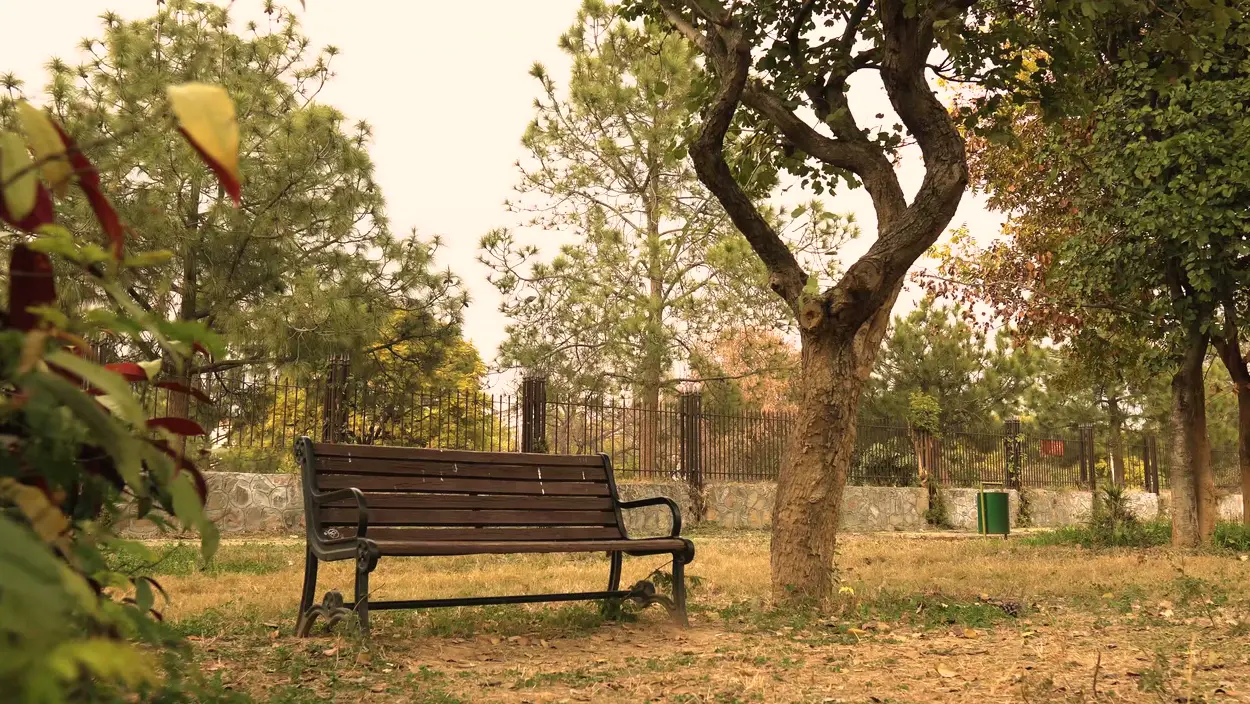
A wooden bench under an autumn tree in a quiet park, after the Replace edit
A wooden bench under an autumn tree in a quiet park, original shot
OriginalEdited
Replace · “replace the wooden bench with a white painted metal garden bench”

01

An instruction editor, not a timeline editor

univid.app does one thing per render: it changes what you name and leaves the rest of the shot alone. There is no timeline, no layers and no keyframes to learn. That makes it quick for the jobs a timeline editor makes slow, such as erasing a sign that should not be in the frame or turning an overcast shot into a sunny one, and it means you still cut, grade and mix your film in the editor you already use. Think of it as a step you take on a single shot before it goes back into your project.

02

Five tasks, each sent to the model that suits it

Remove and Replace work on objects: something is taken out and the space behind it is filled in, or one item becomes another in the same place, size and motion. Relight and Weather work on the whole scene: the direction and colour of the light change, or rain, snow, fog or sun arrive across every frame. Extend continues the shot past its last frame by 5 or 10 seconds with the same camera move. You do not choose a model; each task goes to the one that does that job best, and the price per second is shown for the task you picked. Remove and Replace render at 720p or 1080p, the other tasks at 720p.

03

What stays the same, and what to check

Every task is told to keep the framing, the camera motion, the timing and every person exactly as they are. Results still vary: a removed object can leave a soft patch, or a detail near it can shift slightly. That is why the preview frame comes first and why the finished clip is shown next to the original. Edited clips come back without sound, so keep your original audio track in your editor and lay the edited picture over it. We never change who a person is: face and identity edits, and making someone say or do something, are refused.

Credits per edit

The total for your trimmed clip shows on the render button before anything runs. Plans and credit packs

Credits per edit by task
TaskCreditsModel
Remove or replace, 720p102 per secondKling 3.0 Omni
Remove or replace, 1080p136 per secondKling 3.0 Omni
Relight or weather, 720p46 per secondSeedance 2 Mini
Extend by 5 seconds, 720p164PixVerse V6
Extend by 10 seconds, 720p324PixVerse V6
Preview frame (one still)25Nano Banana 2.1

Questions

How long can the clip be?

You can upload an MP4 or MOV up to 95 MB and 10 minutes. Each edit covers 3 to 15 seconds that you trim from it; Extend needs at least 2 seconds. To change a longer part, make several edits and join them in your editor.

Can I see the result before I pay for the render?

Yes. For Remove, Replace, Relight and Weather you can run a preview frame: one still from your trim with the edit applied, for a small number of credits. Extend has no preview because it adds seconds that do not exist yet.

Does the edited clip keep its sound?

No. Edited clips come back silent. Keep the original audio in your editing software and place the edited picture over it; the timing matches the trim you uploaded.

Can it change faces or make someone say something?

No. univid.app does not change who a person is, swap faces, alter age or body, or make anyone say or do something they did not. Such requests are refused before anything is charged.

What happens if a render fails?

The credits for that render return to your balance automatically. You see a short reason, such as the clip length not suiting the task, and can try again with a different trim or line.