Remove an object from video in one line

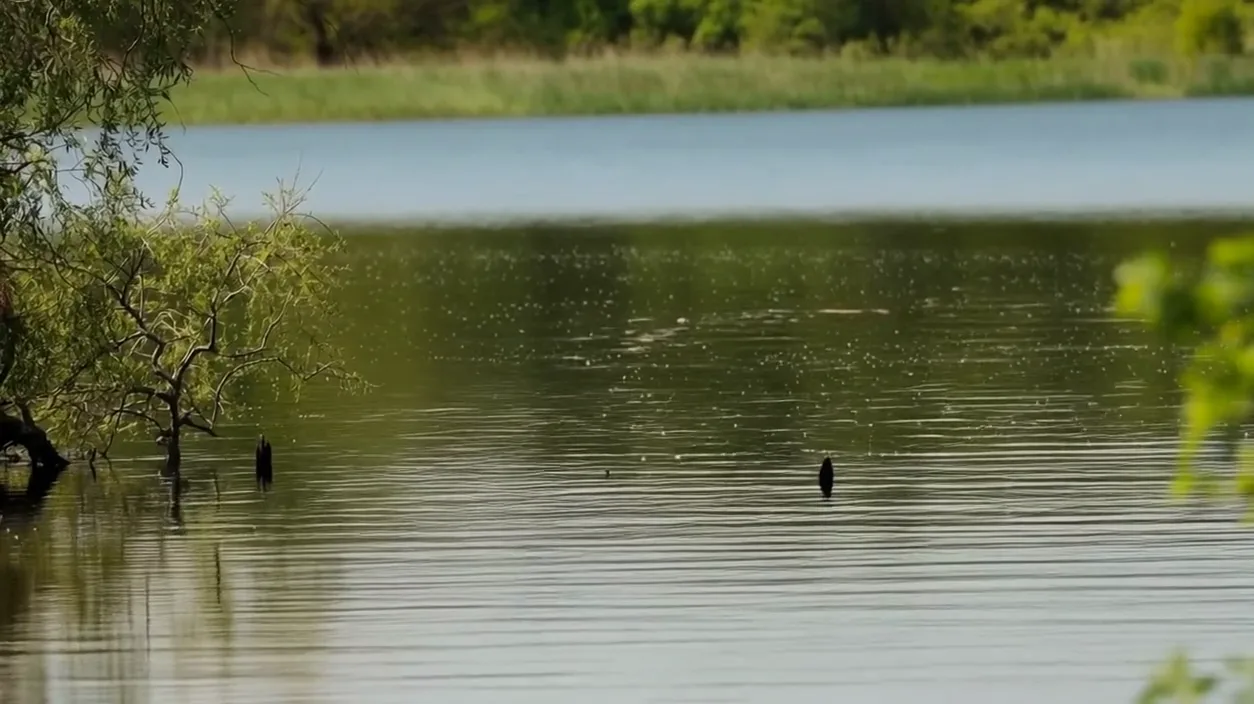
A small rowboat on a calm green lake, with reeds and willow branches, after the Remove edit
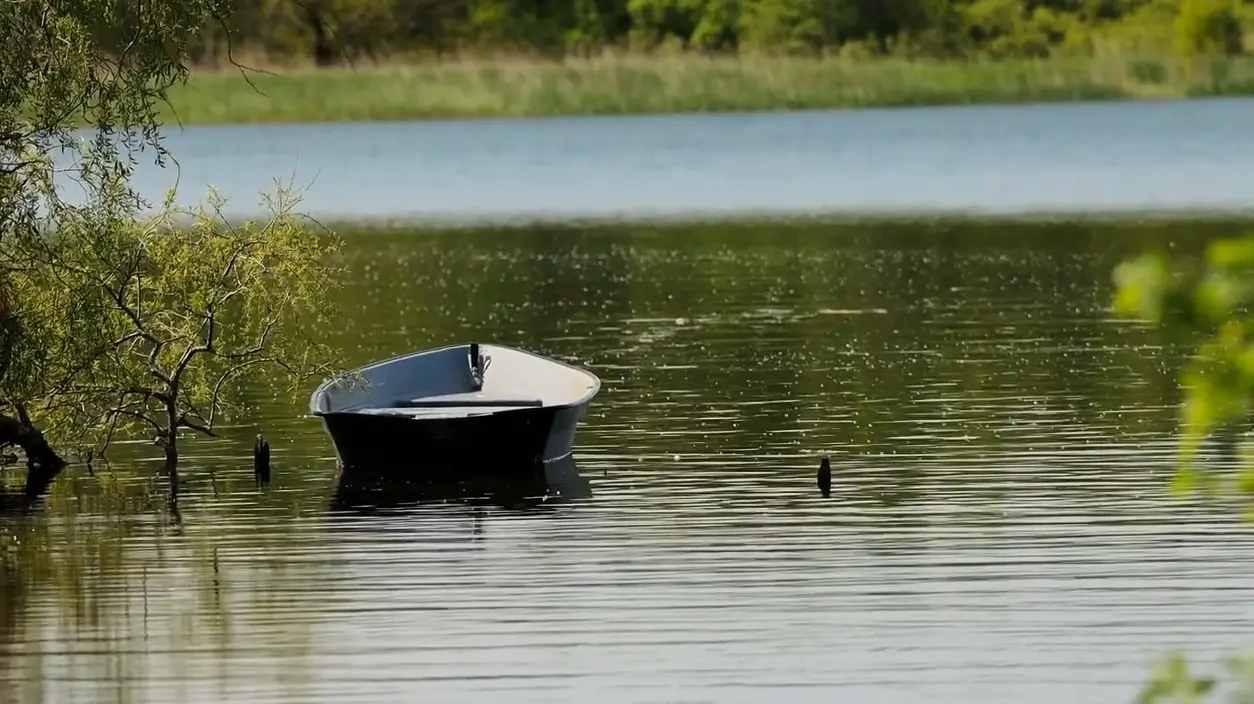
A small rowboat on a calm green lake, with reeds and willow branches, original shot
OriginalEdited
Remove · “the small rowboat on the water”

Drop a clip to edit

MP4 or MOV, up to 95 MB and 10 minutes. You trim the part to change next.

Task

Name the thing and where it is. Faces, identities and what people say are never changed.

Output

Sign up for 25 free credits

25 credits once after you confirm your email: one preview frame of your clip.

To remove an object from a video, upload the clip, trim the seconds where the object is in view and choose Remove. Then name the object, for example "the orange traffic cone in the middle of the road". The object is taken out of every frame of your trim and the space behind it is filled with what would be there, matching the texture, light and movement around it. A preview frame shows the result on one still before you pay for the video.

Updated

How it works

  1. 1

    Trim to the object

    Upload an MP4 or MOV and trim 3 to 15 seconds that contain the object. Shorter trims render faster and cost less, so cut to the part where it is actually visible.

  2. 2

    Name it and preview

    Pick Remove and describe the object by what it is, its colour and where it sits. Run the preview frame on the moment where the object is largest to check the fill.

  3. 3

    Render at 720p or 1080p

    Choose the output size; the credits for your trim are shown before you start. Compare the original and the edit side by side, then download the MP4.

Good for

  • A bin, sign or cable that ruins an otherwise good shot
  • A logo or poster you are not allowed to show
  • Clutter in a product or property walkthrough
  • Stray gear left in frame: a light stand, a bag, a tripod leg
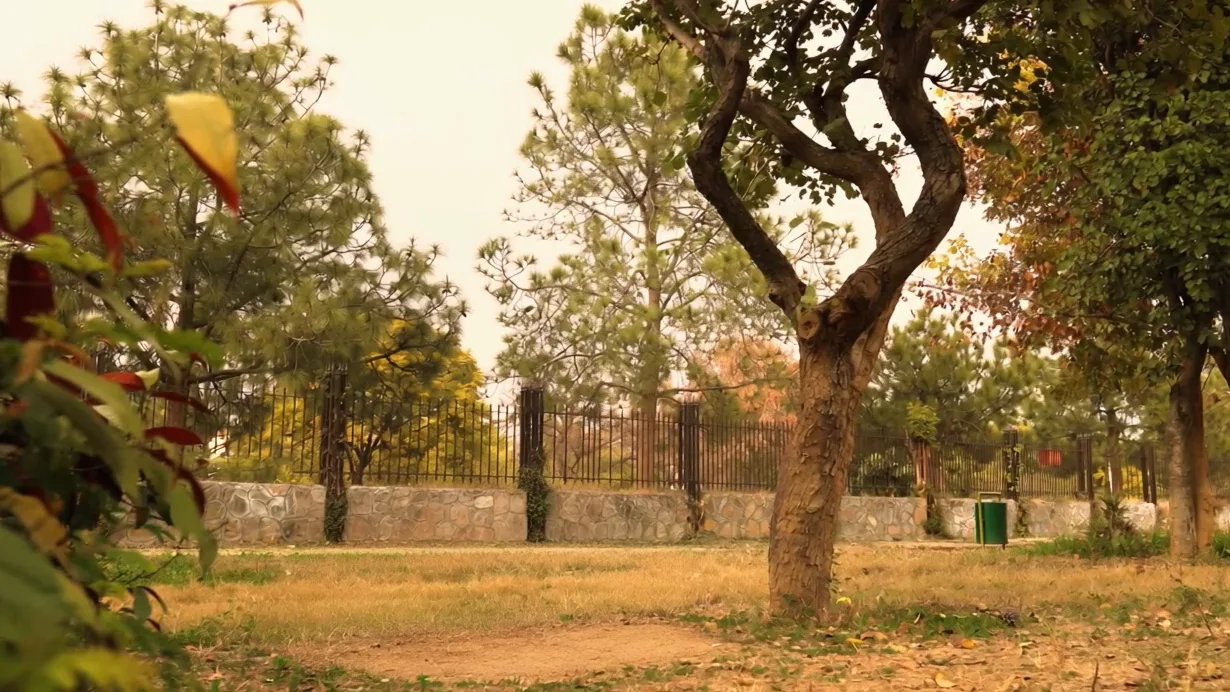
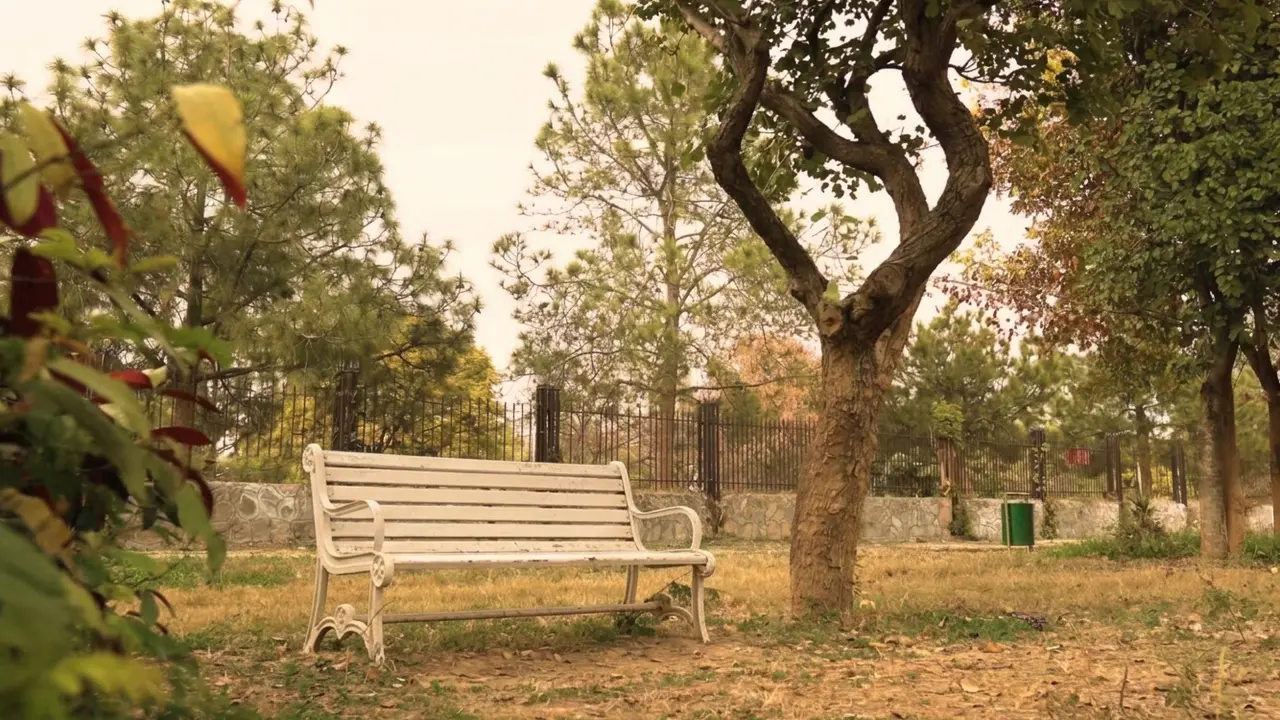
A wooden bench under an autumn tree in a quiet park, after the Remove edit
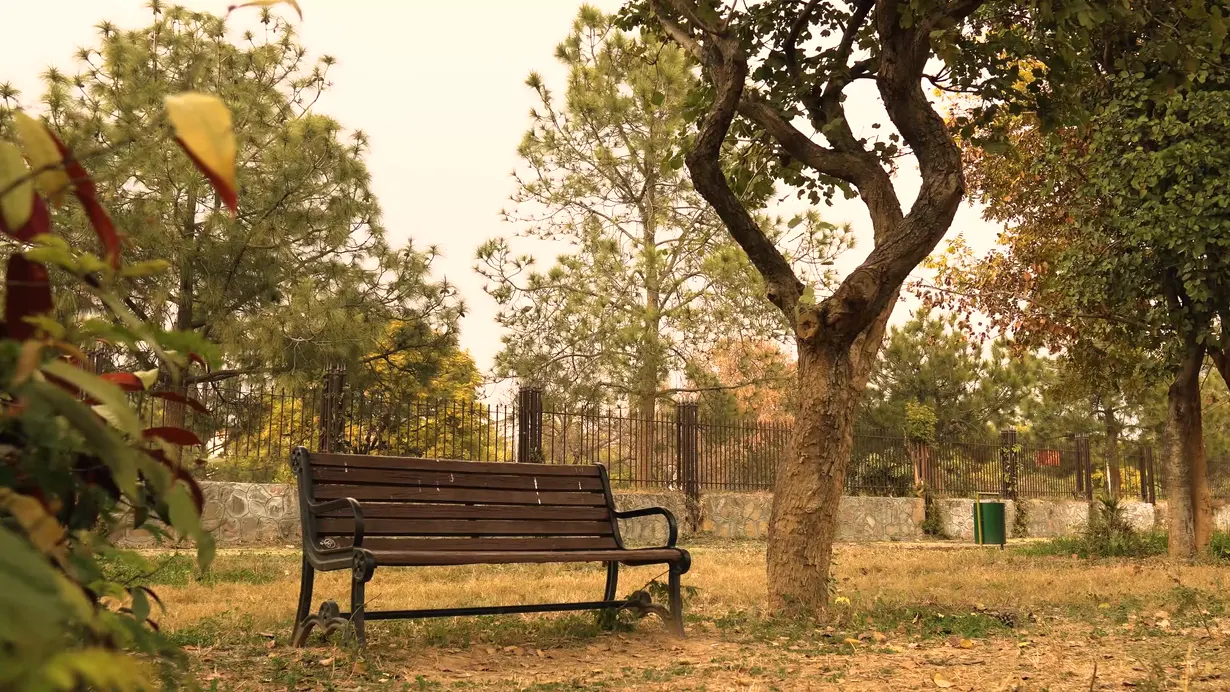
A wooden bench under an autumn tree in a quiet park, original shot
OriginalEdited
Remove · “the wooden park bench on the left”
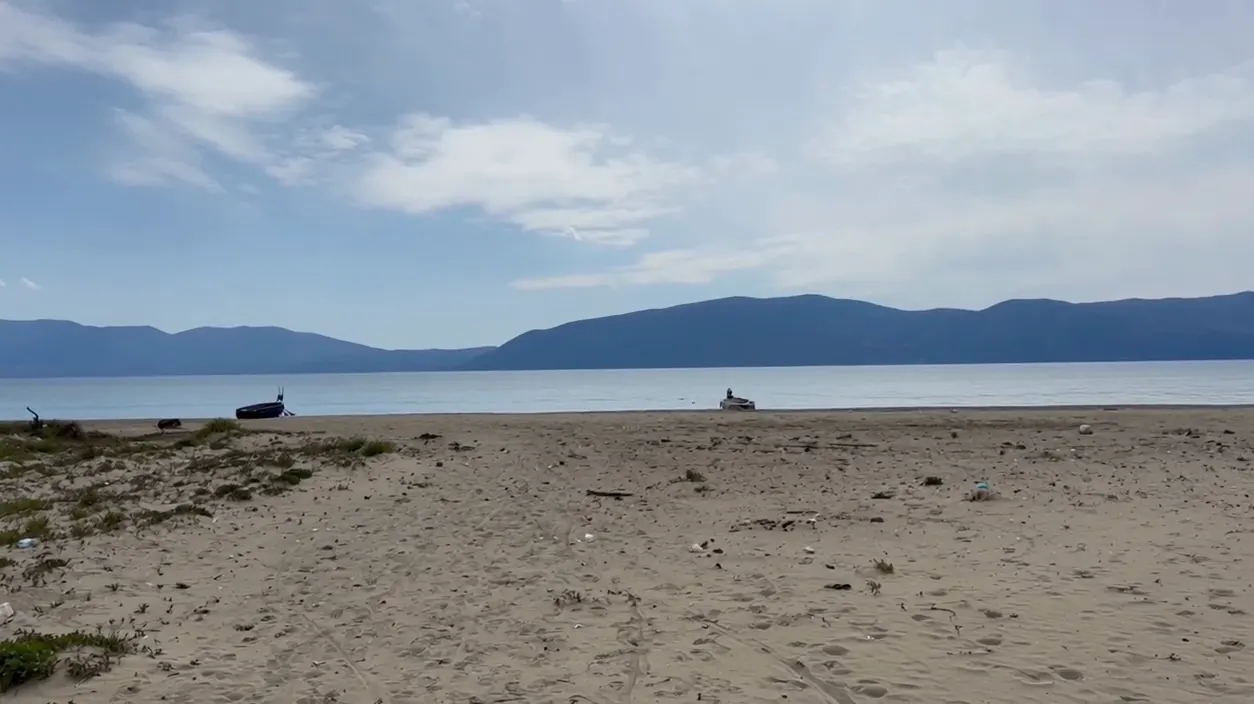
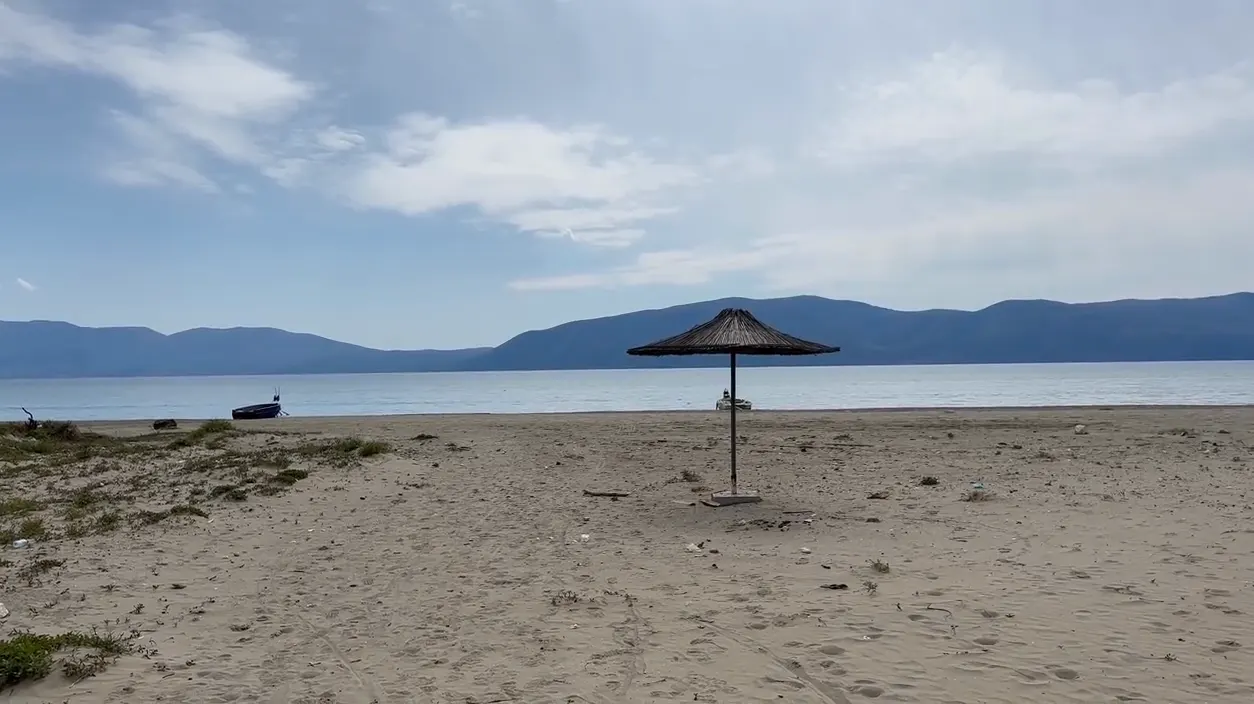
An empty beach on a lake with mountains and a straw umbrella, after the Remove edit
An empty beach on a lake with mountains and a straw umbrella, original shot
OriginalEdited
Remove · “the straw beach umbrella in the middle of the sand”
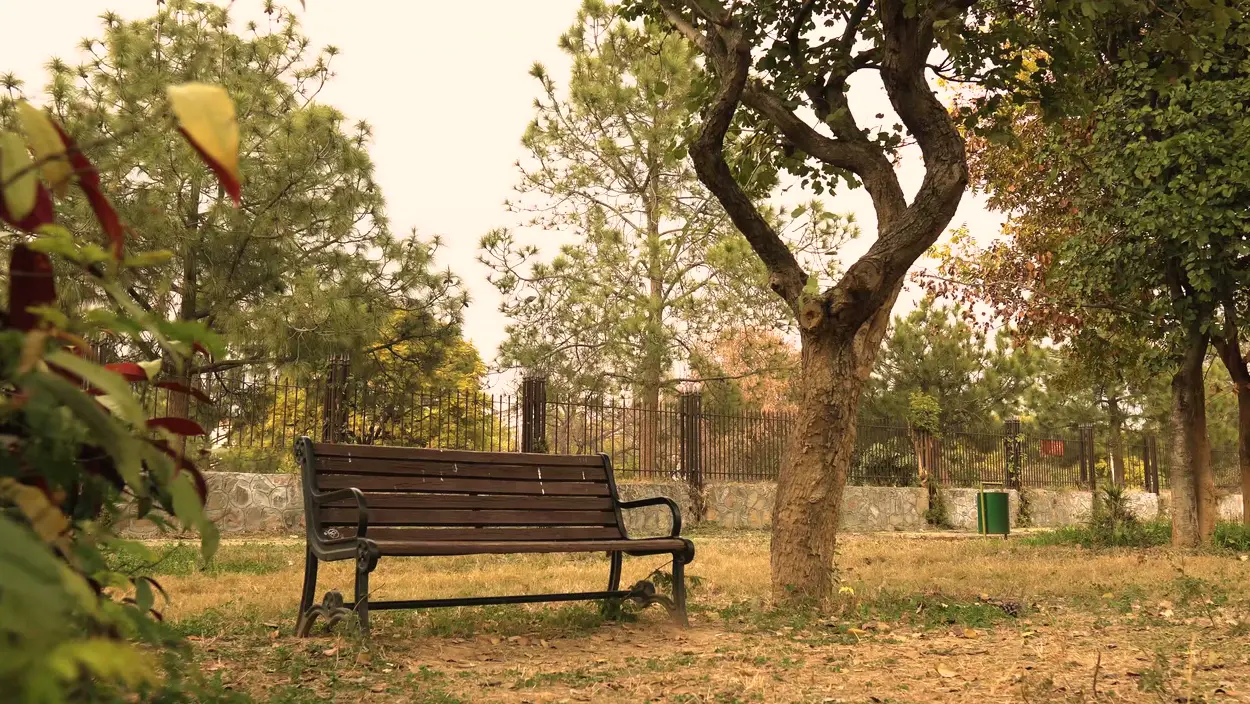
A wooden bench under an autumn tree in a quiet park, after the Replace edit
A wooden bench under an autumn tree in a quiet park, original shot
OriginalEdited
Replace · “replace the wooden bench with a white painted metal garden bench”

01

Shots where removal works best

Removal is easiest when the camera is still or moves slowly and the object sits on its own against a background the model can rebuild: a wall, a road, grass, water or sky. It gets harder when the object passes in front of a person, overlaps another moving thing or covers a large part of the frame, because more of the hidden picture has to be invented. If your shot has a choice of moments, trim to the stretch where the object is smallest and least tangled with anything else.

02

Writing the line

One object per render works better than a list. Describe it so there is only one way to read it: "the black traffic light pole on the right edge" beats "the pole". If several similar things are in view, say which one by position or colour. You do not need to describe the fill; the task already asks for what would be behind the object. If the preview frame shows the wrong thing removed, change the wording before you render rather than after.

03

Checking the result

Watch the edited clip at full size next to the original. Look at the edges of where the object was, at shadows and reflections it used to cast, and at any movement through that area. A removed object can leave a soft patch or a faint shadow; if it does, try a shorter trim or a more exact line. Only remove things you have the right to change, and do not use removal to hide what really happened in news, evidence or documentary footage.

Credits per edit

The total for your trimmed clip shows on the render button before anything runs. Plans and credit packs

Credits per edit by task
TaskCreditsModel
Remove or replace, 720p102 per secondKling 3.0 Omni
Remove or replace, 1080p136 per secondKling 3.0 Omni
Relight or weather, 720p46 per secondSeedance 2 Mini
Extend by 5 seconds, 720p164PixVerse V6
Extend by 10 seconds, 720p324PixVerse V6
Preview frame (one still)25Nano Banana 2.1

Questions

Can it remove a person walking through the shot?

Removing a passer-by in the background often works, especially when they are small in the frame. Removing the main person in a shot, or anyone in front of other people, is much harder and may not look right. Use the preview frame to check first.

Does the camera move have to be still?

No, but a steady shot gives a cleaner fill. Fast pans, shaky handheld footage and quick zooms make the hidden background harder to rebuild.

Can I remove several things at once?

You can name two in one line, but one object per render is more reliable. For several objects, render once, upload the result and remove the next one.

Which sizes can I render?

Remove renders at 720p or 1080p. The credit price per second is shown for the size you pick before you start.

What if the object is still visible afterwards?

Try a shorter trim around the moments it is visible and a more exact description. A render that fails returns its credits automatically; one that finishes but misses is charged, so the preview frame is the cheap place to test wording.