
Guides
AI video editing workflows for real footage
Each guide here covers one job you can do on a clip you shot yourself: take something out, swap an item, change the light or the weather, or add a few seconds to the end of a shot. They all use the same studio: upload an MP4 or MOV, trim the seconds that matter, pick a task, write one line and check a preview frame before you render. The guides also cover the parts around the edit: trimming, vertical crops, sound, disclosure and what this kind of edit should not be used for.
Updated
Edit video with AI: type the change, keep the shot
To edit video with AI on univid.app, you upload a clip, trim the 3 to 15 seconds you want to change, pick one of five tasks and write a single line such as "the red bin on the left". The edit is applied to those seconds and everything else in the frame stays as you shot it: the camera move, the timing, the people and the light. Before you pay for the video render you can see the edit on one still frame, so you know what you are buying.
OpenRemove an object from video in one line
To remove an object from a video, upload the clip, trim the seconds where the object is in view and choose Remove. Then name the object, for example "the orange traffic cone in the middle of the road". The object is taken out of every frame of your trim and the space behind it is filled with what would be there, matching the texture, light and movement around it. A preview frame shows the result on one still before you pay for the video.
OpenExtend a video shot with AI, past its last frame
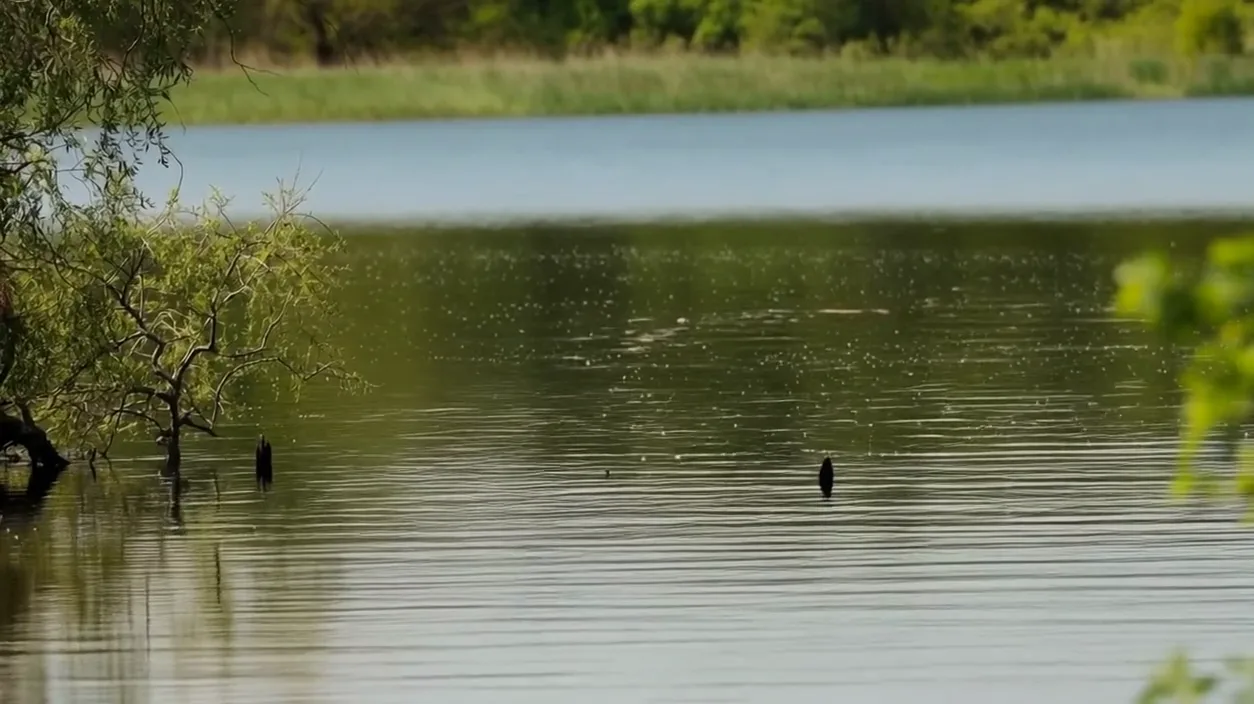
Extend video with AI when a shot ends too early: upload the clip, trim its last few seconds, choose Extend and pick 5 or 10 seconds. Write one line about how the shot should continue, for example "the camera keeps drifting right along the shoreline". The new seconds are added after your trim with the same place, camera motion, speed, light and colour, and the result comes back as one clip: your seconds followed by the new ones.
Open